Sumlion is an Office add-in described by one small XML file, the manifest. Office can load add-ins from a folder you mark as trusted — once. No administrator rights, nothing run, nothing written to the registry by you.
Right-click the zip → Extract All… You get manifest.prod.xml (Excel), manifest.word.prod.xml (Word) and INSTALL.txt, which repeats this guide.
Create a folder — C:\Sumlion is a good choice — and move manifest.prod.xml and manifest.word.prod.xml into it. Not inside C:\Windows or Program Files: those need administrator rights to share. Office will read the files from here from now on, so don't delete the folder later.
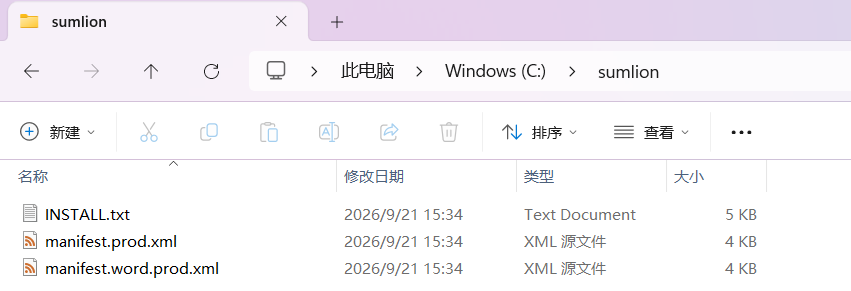
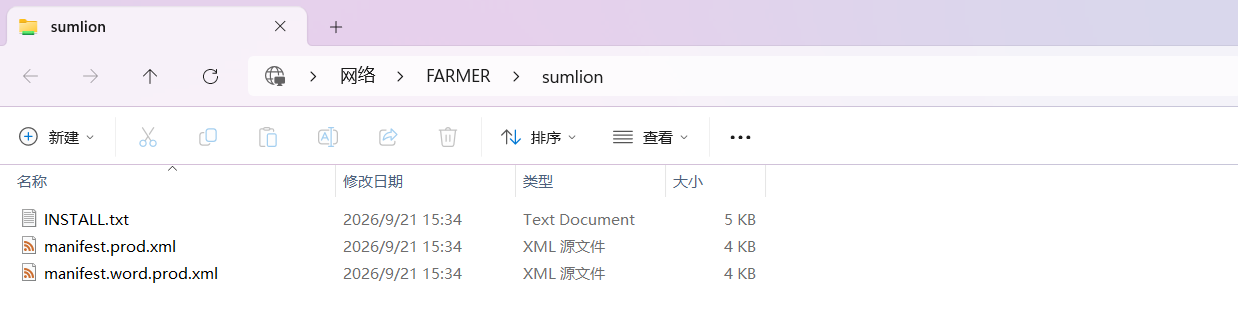
Office only trusts add-in folders given as a network path (\\PC-NAME\Sumlion) — even when the folder is on this very machine. Sharing the folder is what creates that path:
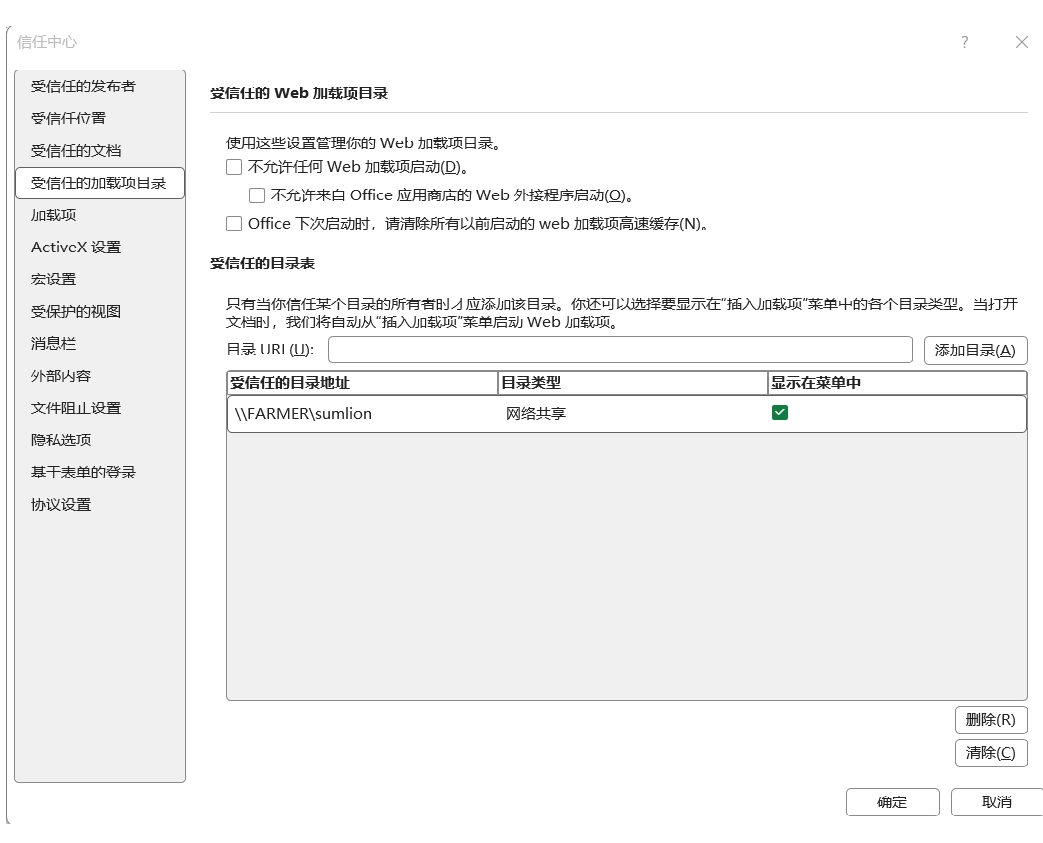
In Excel: File → Options → Trust Center → Trust Center Settings… → Trusted Add-in Catalogs. Paste the network path into Catalog URI, click Add catalog, tick Show in Menu, OK. Then close Excel completely and open it again.
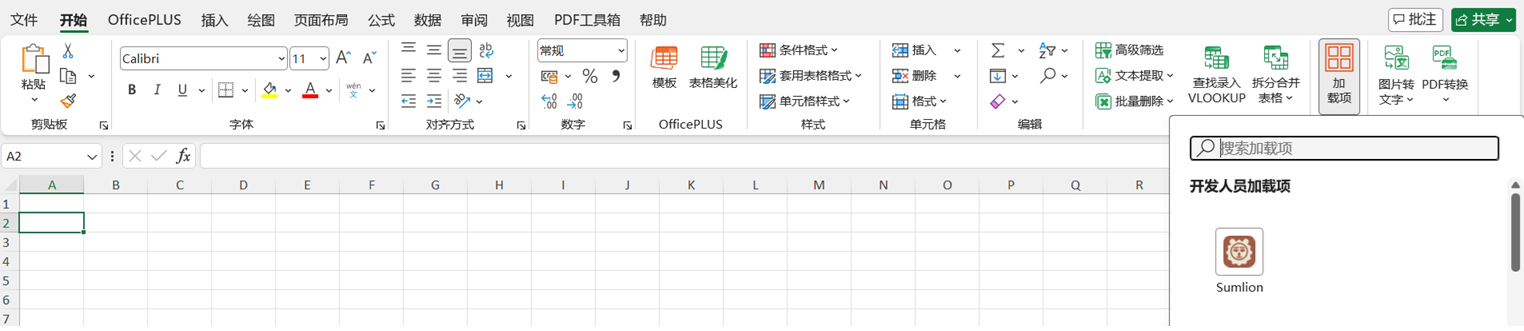
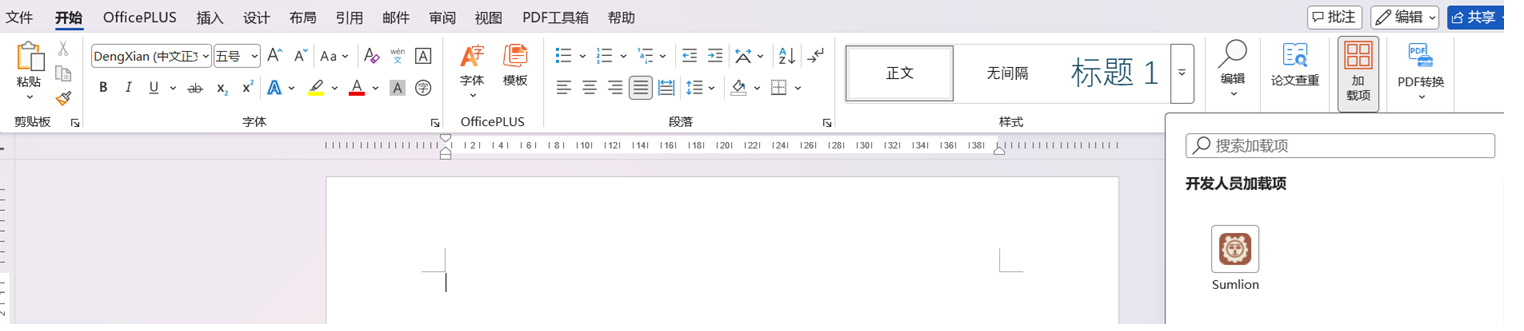
Home → Add-ins (near the right end of the ribbon) → More Add-ins. The Office Add-ins window now has a SHARED FOLDER tab; open it, select Sumlion, click Add. Do the same once in Word.

Sumlion now appears in the Home → Add-ins panel and on the ribbon. Click it to open the pane, then sign in with your email.
The pane updates itself from app.sumlion.cn. To remove Sumlion: Home → Add-ins → More Add-ins → My Add-ins → right-click Sumlion → Remove, then delete the catalog entry in Trust Center if you like.
← All downloads